Licensing
XRTracker uses a two-tier licensing system. Register for a free Developer license directly from the Unity Editor to start tracking — no payment required.
License Tiers
| Tier | Tracking | Watermark | Commercial Use | Duration | Cost |
|---|---|---|---|---|---|
| Developer | Unlimited | Persistent (corner) | No | 1 year (renewable) | Free (registration) |
| Commercial | Unlimited | None | Yes | Yearly | Paid (per-device) |
For pricing, volume licensing, or OEM arrangements, contact sales@formulaxr.com.
Developer
Free for development and evaluation. Register from the Unity Editor (Tools > XRTracker > License Registration) — you'll receive a license file instantly. The Developer license includes a visible watermark and is valid for 1 year, renewable at no cost.
Model generation in the Editor is not restricted — you can prepare your project fully before evaluating tracking.
Not for production
The Developer license is for development, internal testing, and evaluation only. Production deployment requires a Commercial license.
Commercial
Full production license, paid yearly. No watermark, no restrictions. Node-locked to a specific machine via hardware ID. Required for any production deployment.
Getting a License
From the Unity Editor (recommended)
- Open Tools > XRTracker > License Registration
- Enter your name and email
- Accept the Terms of Use and click Register
- The license file is saved automatically — restart Play Mode to activate
If you already have a .lic file, use the Import .lic File button in the same window.
Manual Activation
- Place your
.licfile anywhere in your Unity project (e.g.,Assets/Licenses/) - Select the XRTrackerManager in your scene
- Drag the
.licfile into the License File field
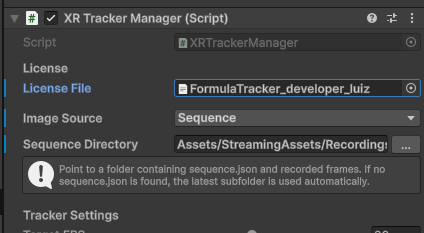
XRTracker validates the license on Play Mode entry and at app startup.
License File Inspector
Select any .lic file in the Project window to see its details in the Inspector: tier, licensee, expiry date, signature status.
For Builds
Embed the license in your build by assigning it to the License File field on XRTrackerManager. The .lic TextAsset is included automatically.
Alternatively, place the file in StreamingAssets/ — XRTracker searches there if no embedded license is assigned.
License Search Order
- Embedded TextAsset (License File field on XRTrackerManager)
- StreamingAssets/*.lic (first
.licfile found) - persistentDataPath/FormulaTracker.lic
If no license is found, tracking is blocked and a registration overlay is displayed.
Machine ID
Commercial licenses are node-locked — bound to a specific device via its machine ID.
Obtaining the Machine ID
There are two ways to get the machine ID:
In the Unity Editor (desktop): The machine ID is shown in the XRTrackerManager inspector during Play Mode. Use the Copy button to copy it for license requests.
On device (iOS/Android): When running with a Developer license, a Copy Machine ID button appears in the bottom-right corner of the screen. Tap it to copy the machine ID to the clipboard.
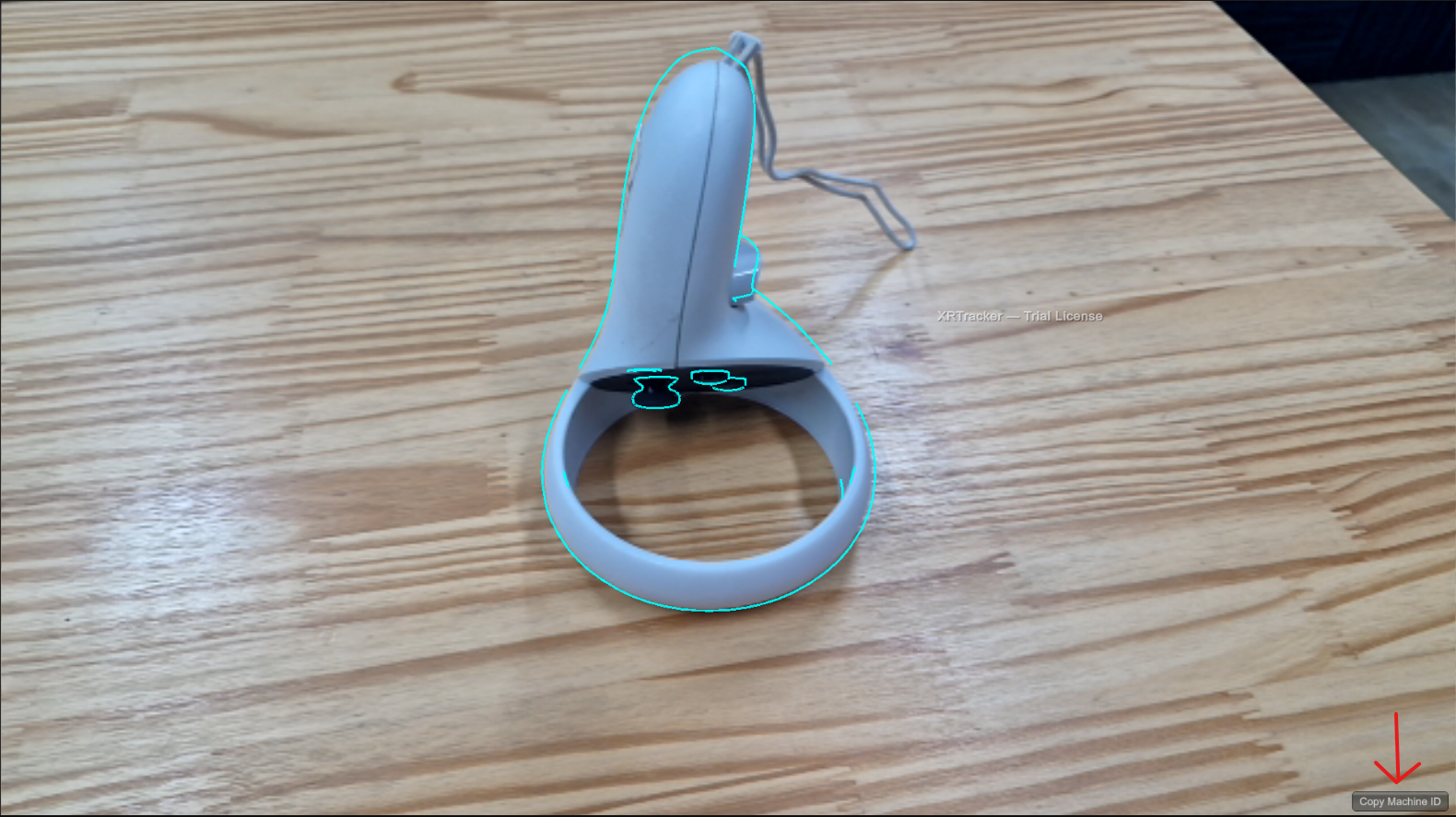
The machine ID is also logged to the console at startup, so you can find it in Xcode (iOS) or Logcat (Android) logs.
iOS Machine ID
On iOS, the machine ID uses Apple's identifierForVendor. This ID will change if the user uninstalls all apps from your vendor and reinstalls. Request a new license if this happens.
Client Deployment
If you are building an application for a client or end user, each device running the application requires its own Commercial license. Your Developer license covers your development machine only — it does not extend to your clients' devices.
For volume licensing or OEM arrangements, contact sales@formulaxr.com.
Legal
For full license terms, permitted use per tier, and redistribution rules, see the Terms of Use & License Agreement.
XRTracker collects anonymous usage metrics on all tiers. See the Privacy Policy for details.